Imagine building a beautiful, fully furnished room in your house, but forgetting to add a door. No matter how valuable the items inside that room are, no one can access it, appreciate it, or even know it exists.
In the world of Search Engine Optimization (SEO), this hidden room is known as an orphan page.
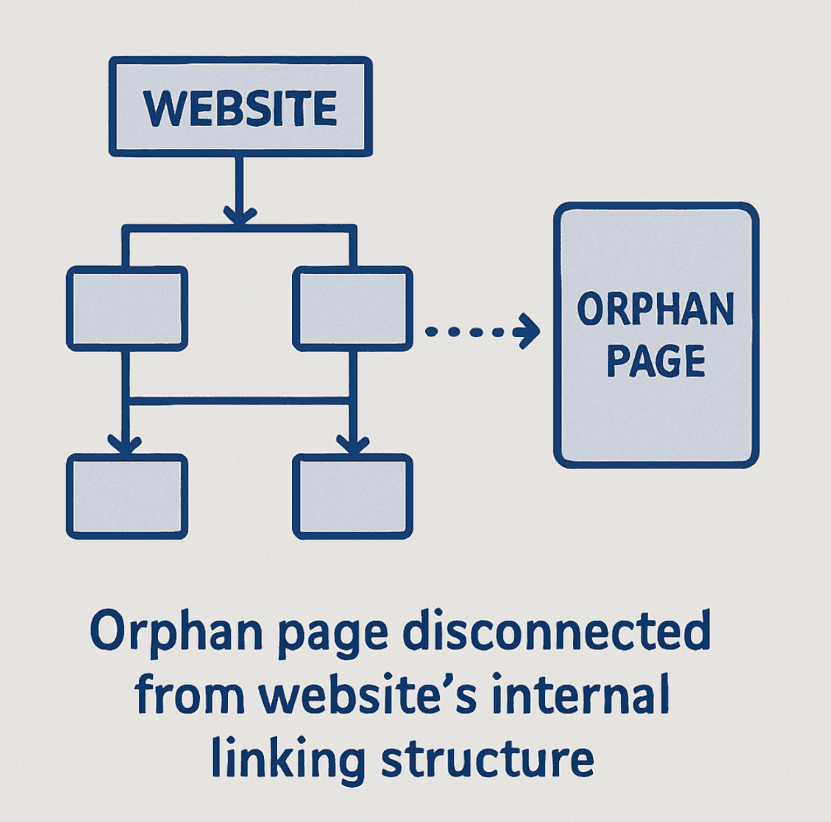
Understanding How to Find Orphan Pages is a critical, yet frequently overlooked, aspect of technical SEO. An orphan page is simply a live page on your website that has absolutely zero inbound internal links pointing to it. Because it is disconnected from your website’s structural web, neither users navigating your site nor search engine bots crawling your links can find it organically.
In this guide, you’ll learn how to find orphan pages on a website (including how to find orphan pages in screaming frog, Google Search Console, and Google Analytics), plus how to fix and prevent them.
Related keywords you’ll see in this article: orphan pages, what are orphan pages, orphan pages SEO, how to find orphan pages in Google Analytics, how to find orphan pages in Google Search Console, how to find orphan pages in Semrush, orphan pages Screaming Frog report, find orphan pages sitemap, orphan pages crawl vs sitemap, how to fix orphan pages, how to prevent orphan pages, internal linking orphan pages.
In this comprehensive guide, we will walk you through exactly how to find orphan pages on a website, the tools you need to do it, and the actionable steps required to fix them.
What Are Orphan Pages and Why Are They Bad?
To fully appreciate the urgency of this issue, we must first look at why orphan pages hurt SEO. Search engines like Google rely on crawlers (spiders) to discover new content. These bots travel from page to page by following links. If a page has no internal links pointing to it, the crawler hits a dead end, or worse, never finds the page in the first place.
Here is a closer look at the damage unlinked pages can do to your website:
- Zero PageRank Flow: In SEO, link equity (or "link juice") flows through internal links. A page with no internal links receives zero authority from your domain.
- Wasted Crawl Budget: Search engines assign a specific "budget" of time and resources to crawl your website. If bots are stumbling upon low-quality orphan pages via old sitemaps or external links, they are wasting time. Fixing these issues is vital for maximizing crawl budget efficiency. (See Google’s overview of crawling and indexing: Crawling and indexing.)
- Poor User Experience: If you have high-quality, relevant content that is orphaned, your actual human visitors cannot find it through site navigation.
- Keyword Cannibalization: Sometimes, an old, forgotten orphan page targets the exact same keywords as a new, optimized page. This confuses search engines and forces your own pages to compete against one another.
Ultimately, identifying these pages allows you to begin reclaiming lost link equity and driving organic traffic to content that has been gathering digital dust.
The Prerequisites: Preparing for Your Hunt
Because an orphan page has no links pointing to it, a standard website crawl will not find it. A basic crawler starts at your homepage and clicks every link it sees. If there are no links to a page, the crawler will assume it doesn't exist.
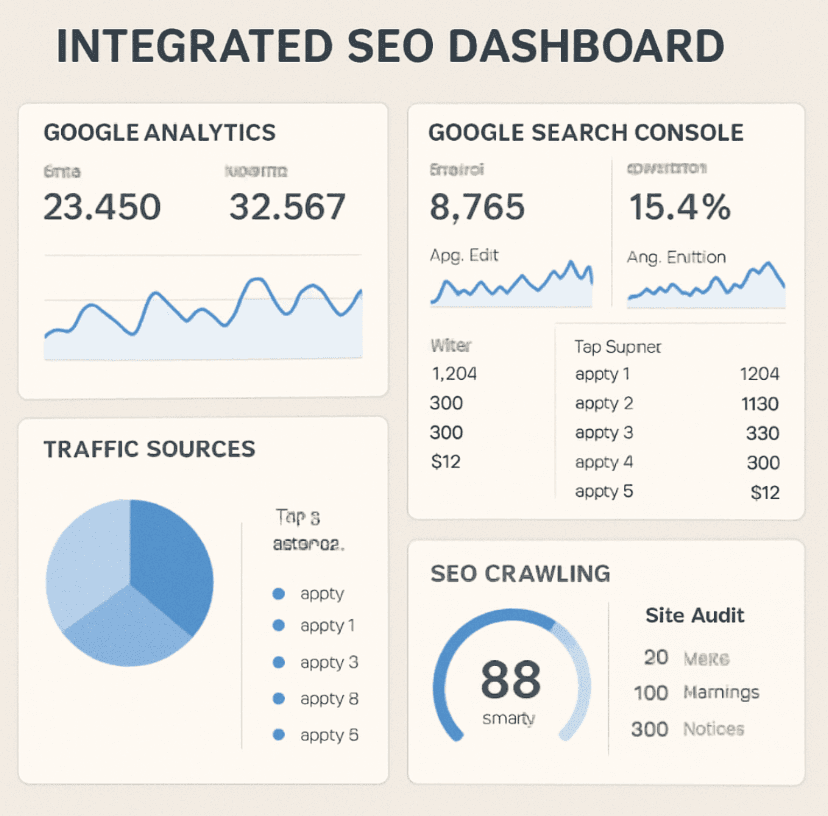
Therefore, identifying unlinked website pages requires cross-referencing multiple data sources. When comparing SEO crawling tools, you want software that can integrate with external data points.
To successfully execute this audit, you will need access to:
- A Premium SEO Crawler: Screaming Frog SEO Spider, Sitebulb, Ahrefs, or Semrush Site Audit (for a Semrush option, see: Semrush Site Audit).
- Google Analytics (GA4): To find pages getting traffic but lacking links.
- Google Search Console (GSC): To find pages Google has indexed but you haven't linked to.
- Your XML Sitemaps: To see what you are explicitly telling search engines to crawl.
- Server Log Files (Optional but highly recommended): For advanced technical audits.
Step 1: How to Find Orphan Pages in Screaming Frog
Screaming Frog is the industry standard for technical SEO audits. However, as mentioned, simply hitting "Start" on a crawl won't find orphans. You must feed the spider additional data sources.
Here is the exact process for how to find orphan pages in screaming frog:
1. Connect Your APIs
Open Screaming Frog and navigate to Configuration > API Access. Connect both your Google Analytics and Google Search Console accounts (Screaming Frog docs: SEO Spider Tutorials).
- For GA4, ensure you are pulling data for the last 30 to 90 days.
- For GSC, pull the Search Analytics data to capture URLs that have received clicks or impressions.
2. Configure Your Sitemap Settings
Next, go to Configuration > Spider > Crawl. Check the boxes for "Crawl Linked XML Sitemaps" and "Crawl These Sitemaps" (paste your sitemap URL here).
This step highlights the importance of the orphan pages crawl vs sitemap comparison. By giving the crawler your sitemap, it will crawl everything it finds via internal links and everything listed in your sitemap. It will then compare the two.
This step highlights the importance of the orphan pages crawl vs sitemap comparison. By giving the crawler your sitemap, it will crawl everything it finds via internal links and everything listed in your sitemap. It will then compare the two.
3. Run the Crawl
Enter your domain and run the crawl. Allow it to finish completely to 100%.
4. Perform Crawl Analysis
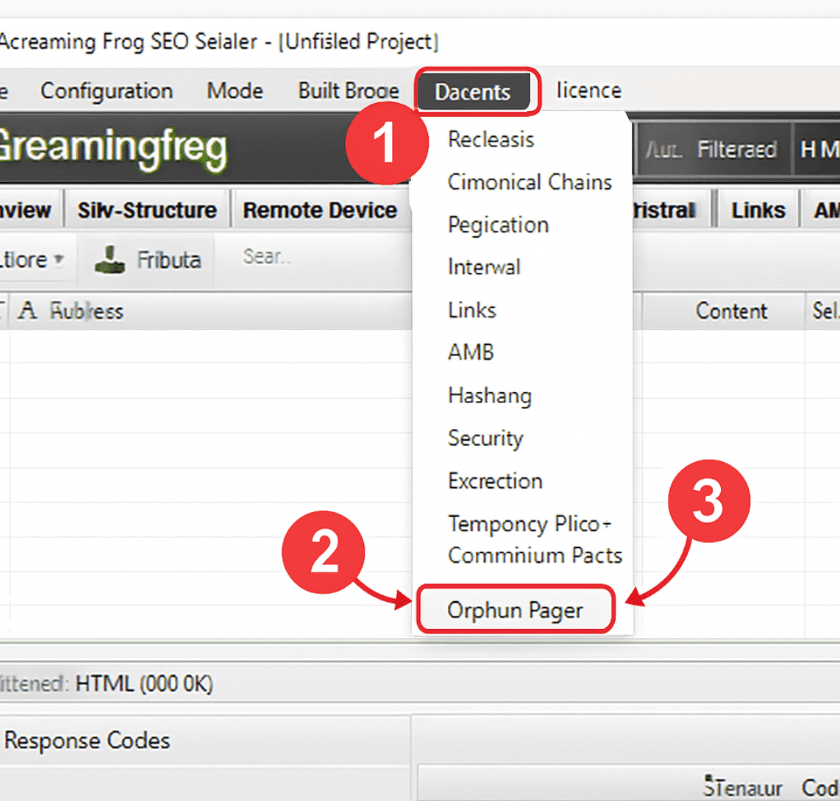
Once the crawl is done, you aren’t finished. Go to the top menu and click Crawl Analysis > Start. This forces Screaming Frog to cross-reference the data it crawled with the API data from GA, GSC, and your sitemaps.
5. View Your Orphan Pages
Navigate to the Internal tab. Filter by "HTML". Now, scroll to the right until you see the column labeled "Orphan URLs". Alternatively, you can go to Reports > Orphan Pages to export a clean spreadsheet of every URL that exists in your sitemap, Analytics, or Search Console, but was not found during the standard web crawl.
Step 2: Google Search Console Coverage Report Analysis
If you don't have access to a paid crawling tool, or if you want to double-check your findings, Google Search Console is a goldmine. Conducting a thorough Google Search Console coverage report analysis can reveal URLs that Google knows about, but your site architecture has abandoned.
Here is how to do it manually:
Here is how to do it manually:
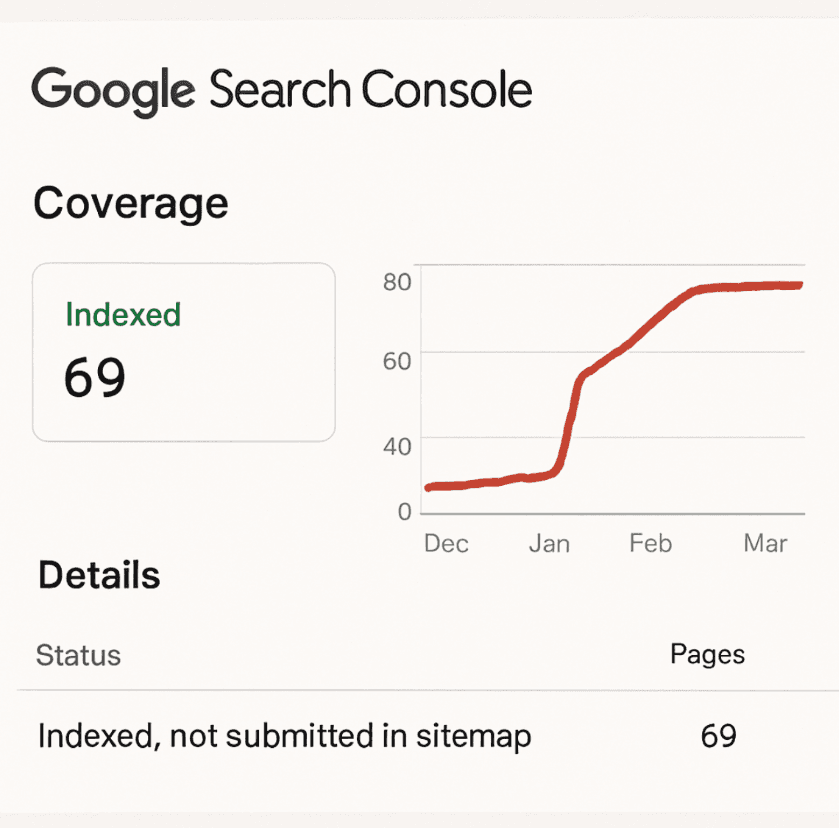
- Log into GSC and navigate to the Pages report (formerly the Coverage report) under the Indexing tab (Google docs: About the Page indexing report).
- Look for the status: "Indexed, not submitted in sitemap". If a page is indexed but isn't in your sitemap, it might be an orphan page that Google found via an external backlink or an old historical crawl.
- Look for the status: "Discovered - currently not indexed" or "Crawled - currently not indexed". Frequently, search engines refuse to index these pages because a lack of internal links signals that the page is of low importance.
The XML Sitemap Verification Process
A crucial part of this step involves the XML sitemap verification process. Sometimes, your CMS (like WordPress) automatically generates a sitemap that includes categories, tags, or author pages that you do not link to in your main navigation.
Download your sitemap (e.g., yourdomain.com/sitemap.xml). Use a spreadsheet to compare the URLs listed in your sitemap against a list of URLs you know are linked within your site structure. Any URL in the sitemap that lacks internal links is an orphan. (This is also a practical way to find orphan pages sitemap entries quickly.)
Download your sitemap (e.g., yourdomain.com/sitemap.xml). Use a spreadsheet to compare the URLs listed in your sitemap against a list of URLs you know are linked within your site structure. Any URL in the sitemap that lacks internal links is an orphan. (This is also a practical way to find orphan pages sitemap entries quickly.)
Step 3: How to Find Orphan Pages in Google Analytics (GA4)
Knowing how to find orphan pages in Google Analytics is useful because GA4 can surface URLs that real users landed on (from email, social, bookmarks, or external links) even if those pages aren’t connected internally.
- In GA4, go to Reports > Engagement > Landing page (or build a similar exploration).
- Export the landing page list (URLs) for the last 30–90 days.
- Compare that export against your crawl export (from Screaming Frog/Sitebulb/Semrush). Any GA4 landing page URL that does not appear in the crawl results is a strong orphan-page candidate.
If you need a GA4 refresher, see: Google Analytics 4 reports.
Step 4: Advanced Unlinked Content Discovery Techniques
If you are managing an enterprise-level website with tens of thousands of pages, basic API integrations might not catch everything. Over years of site migrations, redesigns, and CMS updates, thousands of pages can become disconnected.
To hunt down these deep-rooted issues, you need to employ advanced unlinked content discovery techniques.
To hunt down these deep-rooted issues, you need to employ advanced unlinked content discovery techniques.
Log File Analysis for SEO
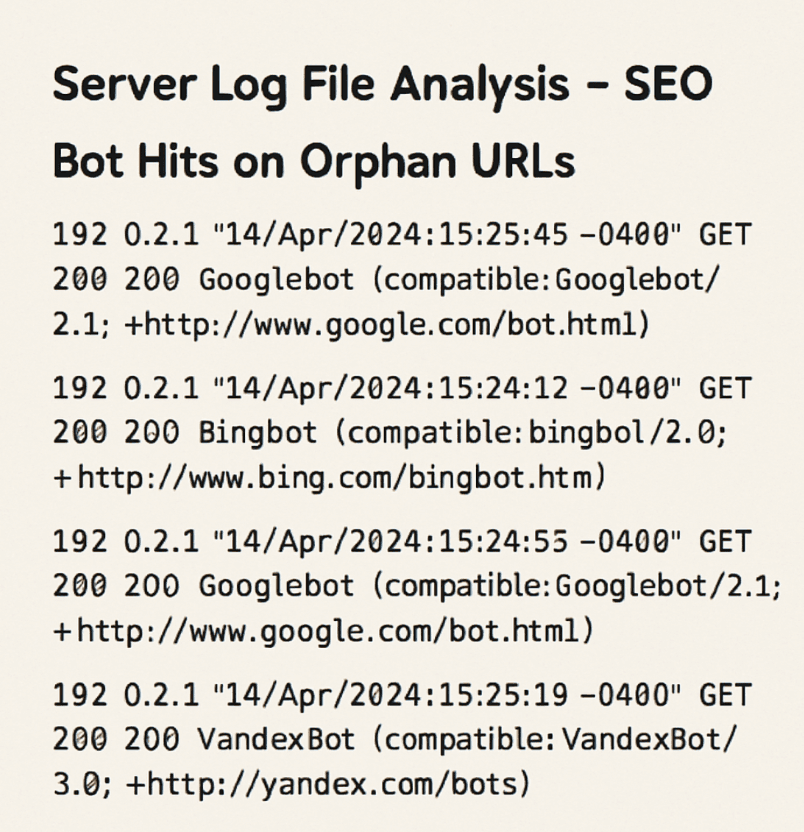
Your website's server keeps a diary of every single file requested by visitors and search engine bots. This is called a log file. Utilizing log file analysis for SEO is one of the most foolproof ways to find hidden pages.
When you analyze a log file using tools like Screaming Frog Log File Analyser or Splunk, you can isolate requests made by "Googlebot". If Googlebot is repeatedly requesting URLs that your standard site crawler cannot find, you have found orphan pages.
Often, these are legacy URLs from an old version of your website. Google remembers them and wastes crawl budget checking them, even though you no longer link to them. Identifying these through log files is a massive step toward improving website crawlability.
When you analyze a log file using tools like Screaming Frog Log File Analyser or Splunk, you can isolate requests made by "Googlebot". If Googlebot is repeatedly requesting URLs that your standard site crawler cannot find, you have found orphan pages.
Often, these are legacy URLs from an old version of your website. Google remembers them and wastes crawl budget checking them, even though you no longer link to them. Identifying these through log files is a massive step toward improving website crawlability.
Finding Pages Missing From Site Navigation
Another manual but effective technique is conducting a content inventory audit. Export a complete list of all published posts and pages directly from your CMS database (e.g., via a WordPress export plugin).
Compare this database export against a fresh crawl of your site. Using the VLOOKUP function in Excel or Google Sheets, you can easily spot discrepancies. If a page exists in your database but doesn't show up in the crawl, you are successfully finding pages missing from site navigation.
Compare this database export against a fresh crawl of your site. Using the VLOOKUP function in Excel or Google Sheets, you can easily spot discrepancies. If a page exists in your database but doesn't show up in the crawl, you are successfully finding pages missing from site navigation.
How to Fix Unlinked URLs: The Action Plan
Now that you have exported a massive list of orphaned URLs, what do you do with them? You cannot treat all unlinked pages equally. Some are valuable assets that need saving, while others are digital trash that need to be discarded.
Learning how to fix orphan pages (and how to fix unlinked URLs) requires a triage process. You must categorize every orphan page into one of three action buckets: Keep, Redirect, or Delete.
Learning how to fix orphan pages (and how to fix unlinked URLs) requires a triage process. You must categorize every orphan page into one of three action buckets: Keep, Redirect, or Delete.
1. The "Keep" Bucket (Link It)
What it is: High-quality blog posts, active landing pages, important product pages, or pages generating revenue/traffic. The Fix: If the page is valuable, you must integrate it into your website’s linking structure.
- Add a link to the page from your main navigation menu or footer.
- Find topically relevant, high-authority blog posts on your site and add contextual in-text links pointing to the orphan page.
- Update your HTML sitemaps and category pages to include the link.
If you want a deeper internal-linking playbook, see: SEO Internal Links. If you prefer to streamline the workflow, try the internal linking tool.
2. The "Redirect" Bucket (301 Redirect)
What it is: Outdated content, discontinued products, or old blog posts that still possess valuable backlinks from external websites. The Fix: You don’t want to keep the page live, but you also don't want to lose the SEO value from external backlinks. You must implement a 301 (Permanent) Redirect. Redirect the orphaned URL to the most relevant, currently active page on your website. This ensures you preserve and pass on the link equity.
3. The "Delete" Bucket (404 / 410)
What it is: Auto-generated tag pages, duplicate content, thin test pages, or expired promotional landing pages with zero external backlinks and zero traffic. The Fix: Let them die. Remove them from your CMS, ensure they are removed from your XML sitemap, and allow them to return a 404 (Not Found) or 410 (Gone) status code.
If you want the official definitions, see: MDN HTTP response status codes.
If you want the official definitions, see: MDN HTTP response status codes.
Preventing Future Orphan Pages: Best Practices
Finding and fixing orphan pages is a great feeling, but if your website's architecture is fundamentally flawed, you will be right back where you started in six months.
To ensure continuous SEO health, you should follow a strict site architecture optimization guide. A healthy site architecture is structured like a flat pyramid. The homepage is at the top, linking to major category pages, which link to sub-categories, which link to individual posts or products. In a perfectly optimized site, no page is more than 3 or 4 clicks away from the homepage.
To maintain this structure, incorporate an internal link audit checklist into your routine SEO maintenance. This is the practical side of how to prevent orphan pages and avoid "internal linking orphan pages" issues in the first place.
To ensure continuous SEO health, you should follow a strict site architecture optimization guide. A healthy site architecture is structured like a flat pyramid. The homepage is at the top, linking to major category pages, which link to sub-categories, which link to individual posts or products. In a perfectly optimized site, no page is more than 3 or 4 clicks away from the homepage.
To maintain this structure, incorporate an internal link audit checklist into your routine SEO maintenance. This is the practical side of how to prevent orphan pages and avoid "internal linking orphan pages" issues in the first place.
Your Internal Link Audit Checklist:
- Establish a Linking SOP: Every time a new blog post or landing page is published, mandate that the creator must go back to at least three older, relevant posts and add a link pointing to the new page.
- Audit Tag and Category Pages: Ensure your CMS isn’t auto-generating hundreds of empty tag pages that aren't linked anywhere in your main navigation.
- Monitor Site Migrations: Always create comprehensive 301 redirect maps during website redesigns to ensure old URLs don't become orphaned in the new design.
- Clean Up Discontinued Products: E-commerce sites are notorious for orphan pages. When a product goes out of stock permanently, don't just remove it from the category page. Redirect it to a similar product.
- Quarterly Crawls: Schedule a routine technical crawl every three months using the API and Sitemap cross-referencing methods discussed above.
Final Thoughts
Learning How to Find Orphan Pages is an essential skill that separates beginner SEOs from technical experts. While it can seem intimidating to pull data from analytics, search consoles, crawlers, and log files, the payoff is immense.
Unlinked pages represent untapped potential. By hunting down these forgotten URLs, you are not just cleaning up digital clutter; you are actively streamlining your site architecture, capturing wasted crawl budget, and funneling valuable link equity back into your most important content.
Take the time to run a comprehensive internal link audit this week. You might be surprised at how much hidden value is locked away in the unconnected corners of your website, just waiting for a link to bring it back to life.
Unlinked pages represent untapped potential. By hunting down these forgotten URLs, you are not just cleaning up digital clutter; you are actively streamlining your site architecture, capturing wasted crawl budget, and funneling valuable link equity back into your most important content.
Take the time to run a comprehensive internal link audit this week. You might be surprised at how much hidden value is locked away in the unconnected corners of your website, just waiting for a link to bring it back to life.
FAQ
Orphan pages are live URLs with zero internal links pointing to them, which makes them hard for users and crawlers to discover through normal site navigation.
In most cases, yes—because orphan pages can waste crawl resources and receive little to no internal authority. But sometimes an orphan page is intentionally isolated (for example, a private campaign landing page) and that can be fine if it’s managed deliberately.
A common approach is to use Semrush Site Audit to crawl your site and then compare that crawl to external URL sources you trust (your sitemap, GSC exports, GA4 landing pages, or your CMS URL list). URLs present in those sources but missing from the crawl are likely orphaned.
Export the GA4 Landing page report (last 30–90 days) and compare the URL list to your crawler export. Any GA4 landing page not found in the crawl is a strong candidate orphan page.
First decide whether the page should exist. If it’s valuable, add contextual internal links from relevant pages and ensure it’s reachable in your information architecture. If it’s outdated but has backlinks, 301 redirect it. If it’s low-value and unneeded, remove it and clean it from your sitemap.
For most sites, quarterly is a good baseline. For frequently updated sites (news, large e-commerce, marketplaces), monthly checks are safer.

Aziz J.
Co-founder @ ProgSEO.dev
Written By
Aziz is building ProgSEO.dev, a platform focused on automating SEO content production. He focuses on turning SEO into a system that consistently generates and updates content without manual workflows. Focused on building scalable SEO systems for SaaS and professional services.